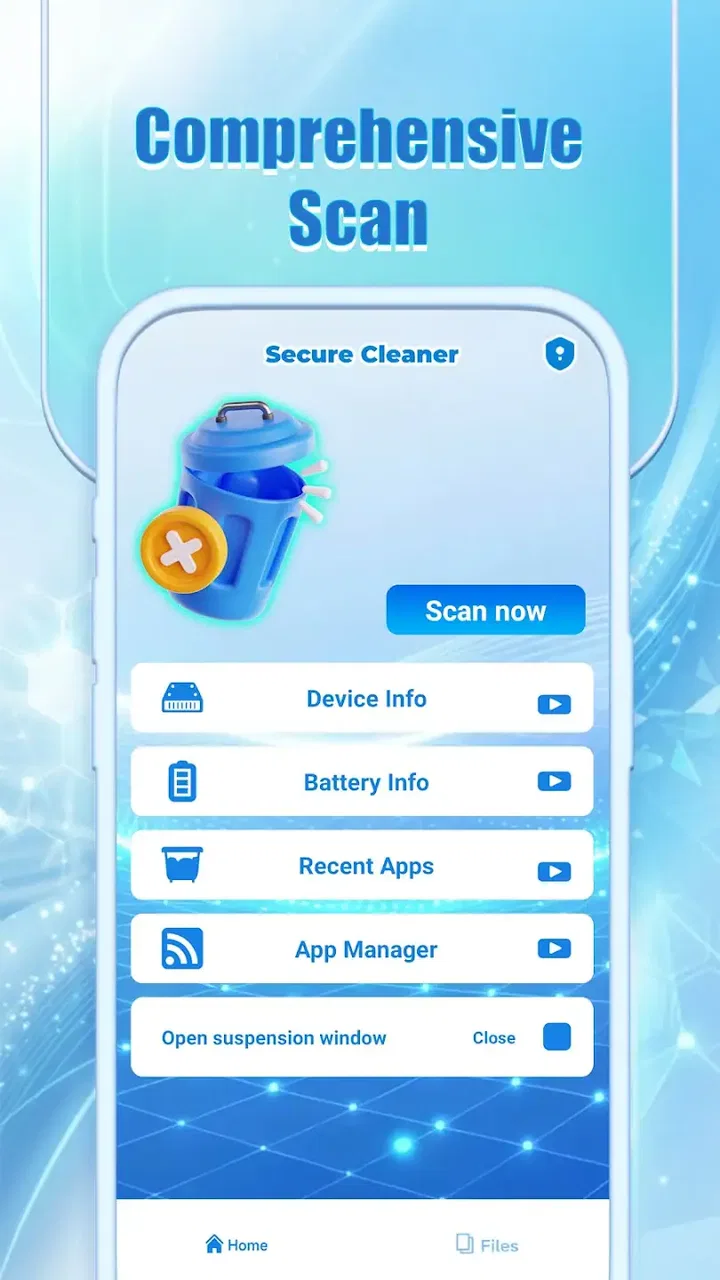
Secure Cleaner
- 4.4
- Rating
- 50.00K
- Installs
- Free
- Price

 Analysis by App-foxy
I approached Secure Cleaner as a practical phone-maintenance tool rather than expecting it to transform an older device overnight. Its promise is simple: help your phone travel lighter by dealing with clutter in a more organized way. That sounds straightforward, but cleaner apps are only useful when they make the right actions easy and avoid encouraging careless deletion. My experience with this app is best described as focused and approachable, with the main value coming from how deliberately you review what can be removed.
Developed by Pervaiz Studio, this free Tools app is aimed at people who want a simpler way to check their phone and recover a little breathing room. It is available for users aged Everyone, and its current version is 1.0.1. The app has reached over 50K installs and holds a 4.5 average from 47 ratings, which suggests a positive early reception without making it sensible to treat the app as a universally proven solution.
Getting past the places where cleaner apps become confusing
The first point where people can get stuck is usually not the cleaning itself. It is the moment when the app presents a result and the user has to decide whether that result is safe to act on. A phone may contain downloads, old images, temporary files, duplicate-looking items, and application data that appears unimportant at a glance. Those categories do not all carry the same risk. I would never treat a cleaner’s suggestion as an automatic instruction to erase everything.
You May Also Like

 AccuWeather: Weather Radar
AccuWeather Review: A Quick, Clear Forecast for Everyday Decisions
For everyday plans, the best forecast is the one you can understand quickly. AccuWeather makes rain timing, radar, and local conditions easy to act on, with a few trade-offs.

 Hill Climb Racing
Why Hill Climb Racing Still Turns Crashes Into One More Run
A tiny car, a bumpy hill and one more upgrade: Hill Climb Racing keeps resurfacing because its simple chaos makes every near-miss feel personal.

 AliExpress - Shopping App
AliExpress Makes Global Shopping Feel Personal, but Shoppers Bear the Risk
AliExpress turns a global marketplace into a pocket-sized discovery engine. Its reach is useful, its shopping loop compelling, and its trade-offs easy to miss.

 Lords Mobile: Kingdom Wars
Lords Mobile Is a Kingdom-Building Routine, Not a Quick Match
A case-by-case verdict on the building, battles, device demands, and social commitments that make Lords Mobile rewarding for some players and exhausting for others.

 PDF Scanner app - TapScanner
TapScanner Makes Paperwork Easier to Capture, Check, and Share
TapScanner makes scanning with a phone feel less like a rescue operation and more like a dependable step in getting work done. Its capture tools are useful, though not flawless.

 Block Blast!
 Shows How Much a Puzzle Game Can Leave Out
A quiet grid game shows why puzzle players increasingly value instant clarity, repeatable skill and low-pressure play—and where the genre still needs to catch up.
More From Our News Desk
View All News


That is particularly important with a tool whose short description is “Secure Cleaner.” The word secure should encourage careful handling, not blind confidence. Before confirming a cleanup, I recommend opening each available category and checking whether the files include anything you still need. A forgotten document in a download folder can be more valuable than the storage space it occupies, and a cached image may be inconvenient to recreate even if it is technically removable.
Another common source of friction is expecting the first scan to solve a phone that feels slow. Storage clutter and performance problems overlap, but they are not identical. If the device is overheating, losing battery unusually quickly, crashing, or struggling because several demanding apps are active, deleting files may not address the real cause. I see this app as a useful inspection and cleanup aid, not as a complete diagnosis for every Android problem.
The strongest habit is to use it as a review step before a cleanup step. Scan first, read the categories, remove only what you recognize, and then use the phone normally for a while. That approach gives you a clearer sense of whether the change helped and reduces the chance of turning a small storage problem into a recovery problem.
What I check before starting a scan
Before opening the cleaner, I close anything that I am actively using and make sure important photos or documents already exist somewhere I trust. This is not because the app is difficult; it is because cleanup is a destructive activity by nature. A backup or separate copy gives you room to make a sensible decision instead of rushing because the phone is nearly full.
I also look at the phone’s own storage screen first. That built-in view provides useful context: whether the largest share is media, applications, downloads, or another category. Secure Cleaner then becomes more useful because I already know what problem I am trying to solve. If videos occupy nearly all available space, a general cleaner will not replace the need to sort those videos manually. If temporary clutter is the issue, a focused cleanup may be enough.
Users should also leave a little time for the first inspection. A scan that appears to pause may simply be processing a large collection of files. Repeatedly closing and reopening the app can make the process feel less reliable and may force you to start again. I prefer to let one pass finish, then review the results calmly rather than treating the first screen as a race.
Because this is a relatively new release, I would keep expectations practical. Version 1.0.1 can be a good starting point for a lightweight utility, but newer tools sometimes feel less polished around edge cases than long-established system features. If a screen behaves unexpectedly, I first return to the app’s main view, reopen the relevant section, and check whether the result is still present before assuming that files were changed.
A safer setup routine for everyday phones
My preferred setup is deliberately boring. I begin with a normal charging level, close media players and editors, and avoid starting a cleanup while another major phone task is running. Then I inspect the scan results in small groups. This matters on a phone used for work or study, where a single mistaken deletion can create more trouble than a crowded storage bar.
For a family member’s phone, I would be even more conservative. I would ask which folders contain important pictures, messages, or downloaded documents before removing anything. A cleaner is easier to recommend when the person using it understands the difference between unnecessary clutter and personal files. The app can support that conversation, but it cannot know the emotional or practical value of every item.
One useful trick is to record the phone’s available space before cleaning, without turning the process into a laboratory experiment. Afterward, check whether the storage situation actually changed. If the difference is small, that is not automatically a failure. It may mean the selected items were modest in size, or that the phone’s storage display has not refreshed yet. Give the system a moment, reopen the storage view, and avoid repeating the same cleanup immediately.
I would also avoid running several cleaner utilities back to back. They may inspect similar areas and produce overlapping suggestions, which makes it harder to understand what each one changed. Secure Cleaner is easier to judge when it is used on its own, followed by a normal restart or ordinary phone use if the device still feels sluggish.
Recovering when a cleanup does not go as expected
If the scan does not seem to finish, my first response is to wait rather than repeatedly tapping the same control. Large media collections and busy phones can make any inspection feel slow. If the screen remains unresponsive, I leave the app, reopen it, and try again after closing unrelated applications. This is a general recovery step that does not require changing system settings or taking risky actions.
If the results look empty, I check the phone’s available storage separately. An empty result can mean there is little removable clutter, that the relevant space is being used by large personal files, or that the app needs another pass after the phone has settled. In that situation, I would not force a cleanup just to make the app report a bigger result. A small or empty scan is preferable to removing something merely because the device feels full.
When the phone still reports low storage after cleanup, I move to the largest categories in the system storage view. This is where many users waste time: they keep deleting small temporary items while a handful of long videos, offline media files, or large applications consume nearly everything. Secure Cleaner may help with general clutter, but it should not be blamed when the main problem is content the user intentionally saved.
If an application behaves strangely after maintenance, I first identify whether the problem is limited to that application or affects the whole phone. I would reopen the affected app, restart the device, and check whether the issue repeats during ordinary use. If only one app is affected, its own settings or a service interruption may be more relevant than the cleaner. If the entire phone is unstable, the cause may be broader and deserves system-level troubleshooting rather than another cleanup pass.
There is also a simple workflow rule I find valuable: do not combine cleanup with several other changes. Avoid deleting files, uninstalling applications, changing battery settings, and installing another utility all at once. If something goes wrong, you will not know which action caused it. A measured sequence makes Secure Cleaner easier to evaluate and makes recovery much less confusing.
When the app is not the cause
A phone can remain slow because of aging hardware, a demanding application, poor network conditions, or a battery that no longer performs well. None of those problems automatically point to unwanted files. For example, a web page that loads slowly may reflect the connection rather than storage. A game that stutters may need more memory or graphics capability than the phone can provide. Cleaning files will not change those limits.
Likewise, a device that restarts or becomes unusually hot deserves more caution. I would stop using maintenance tools as the main answer and look for the application or system process associated with the behavior. The same applies to rapid battery drain. Removing clutter can be sensible, but battery symptoms usually call for examining background activity, screen use, signal strength, or battery condition.
Secure Cleaner is also not the best choice for someone who wants a full file-management system. If your main task is moving folders, renaming documents, sorting photographs, or creating a detailed archive, a dedicated file manager is more appropriate. If you want automated photo organization, a gallery tool will usually provide a clearer workflow. This app makes more sense when the immediate question is, “What can I safely review and remove?”
There is a trade-off compared with relying only on the phone’s built-in storage controls. System tools are already integrated and may provide the clearest view of how the operating system classifies space. A separate cleaner can feel more approachable for a quick review, but it adds another layer between you and the files. I would choose Secure Cleaner for convenience and a focused cleanup session, while keeping the built-in storage screen as the final reference when the numbers or categories seem unclear.
Three small habits that make the app more useful
First, use it after a natural clutter-building event instead of on an arbitrary schedule. After returning from a trip, finishing a project, or downloading a group of documents, you already know which files are likely to be temporary. That context makes the scan easier to interpret and reduces accidental deletion.
Second, treat unusually large items as a separate decision. Size alone does not make a file disposable. A large recording may be essential, while many tiny leftovers may be harmless. I check the largest items manually and remove them only when I know they are duplicated, outdated, or safely stored elsewhere.
Third, clean in stages and observe the result. Start with items you clearly recognize as unnecessary, then check storage and everyday performance before continuing. This staged method is especially helpful for people who share a phone with family members or use it for work, because it preserves a clear trail of decisions without needing complicated technical knowledge.
These habits reveal the app’s real strength: it can turn a vague feeling of “my phone is full” into a more manageable review. Its weakness is the same as that of most cleanup tools: it cannot understand personal importance. The quality of the result depends on the user’s judgment at the confirmation stage.
Who should use it, and who should skip it
I think Secure Cleaner suits someone who wants a straightforward utility for occasional storage housekeeping and does not want to learn a complicated file-management system. It is also a reasonable option for a relative who needs a simple starting point, provided another person explains what should never be deleted. The free price removes an obvious barrier to trying it, and the Everyone content rating makes it broadly approachable.
I would be more cautious recommending it to a power user who already understands storage locations and prefers complete manual control. That person may find a built-in storage manager or a dedicated file browser more transparent. I would also skip it as a solution for serious performance faults, suspicious phone behavior, damaged files, or backup management. Those situations need tools designed for those specific jobs.
The app’s early adoption and 4.5 average are encouraging, but I would still judge it by your own workflow rather than by the rating alone. A cleaner succeeds when it helps you make safe decisions quickly. If you have to second-guess every result or keep switching between several tools, its convenience advantage becomes much smaller.
My practical verdict
After using Secure Cleaner as a focused maintenance aid, I see it as a sensible free option for people who want to inspect phone clutter without turning storage management into a technical project. The best results come from pairing it with the phone’s built-in storage view, checking important files first, and cleaning in small, understandable steps.
My main recommendation is simple: use the scan to guide your decisions, never to replace them. That mindset keeps the app useful while avoiding the most common cleaner-app mistake—assuming every suggested item has no value. If your problem is ordinary clutter, it can make the cleanup process less intimidating. If your problem is battery health, overheating, unstable software, large personal media collections, or detailed file organization, another solution will be a better fit.
For a first release from Pervaiz Studio, version 1.0.1 offers a practical starting point rather than a reason to abandon the phone’s own tools. I would install it for occasional, careful housekeeping, especially on a device that needs a clearer look at unnecessary files. I would not run it automatically or expect it to perform miracles. Used with that realistic boundary, Secure Cleaner earns its place as a small utility that can help your phone feel more manageable without making cleanup decisions for you.
FAQs for Secure Cleaner
01What is Secure Cleaner and how does it work?
Secure Cleaner is an app designed to optimize your device's performance by clearing junk files, managing storage, and enhancing overall speed. It works by scanning your device for unnecessary files, cache, and residual data, allowing you to delete them with a single tap. This helps in freeing up space and improving your device’s efficiency.
02Is Secure Cleaner safe to use on my device?
Yes, Secure Cleaner is safe to use. It prioritizes user privacy and security by ensuring that no personal data is accessed or shared without consent. The app has undergone rigorous testing to ensure it doesn't interfere with essential system files, making it a reliable tool for maintaining your device's health.
03Does Secure Cleaner support both Android and iOS devices?
Secure Cleaner is available for both Android and iOS platforms. While the core functionalities are consistent across both systems, certain features may vary slightly depending on the operating system's capabilities and restrictions. Ensure you download the correct version for your device from the respective app store.
04How often should I use Secure Cleaner to maintain my device?
For optimal performance, it's recommended to use Secure Cleaner at least once a week. Regular cleaning helps prevent the accumulation of unnecessary files and ensures your device runs smoothly. However, if you frequently download apps or browse the web, you might benefit from more frequent cleanups.
05Are there any in-app purchases or ads in Secure Cleaner?
Secure Cleaner offers a free version with essential cleaning features, but it includes ads to support development. There is also a premium version available through in-app purchases, which provides an ad-free experience and unlocks additional features like advanced cleaning options, scheduled cleanups, and priority customer support.
Pros
- Efficiently frees up storage space.
- User-friendly interface for easy navigation.
- Quick scan and cleanup options.
- Supports multiple languages.
- Minimal impact on device performance.
Cons
- Contains ads in free version.
- Occasional false positives in scans.
- Limited features in free version.
- Requires internet for some functions.
- No option for scheduled cleanups.

Secure Cleaner
Gallery